Labels

Categories: Food | Travel | Beer | Wine | Boston | Humor | TV | Tech | Pop Culture | Politics | Golf | Video | Photo | Auto
Sponsored: Samsung | Cadillac | Volt | GMC | AT&T | Gear List: Cameras, Lights, Microphones, etc.
More: SteveGarfield.com | Steve Garfield's Video Blog (archived 6/19/2013)
“As an Amazon Associate I earn from qualifying purchases.” | Mastodon
Showing posts with label facebook. Show all posts

Sunday, June 14, 2020

How To Get Started with StreamYard, a live streaming studio in your browser

Lots of people are using StreamYard to live stream shows, to sites like Facebook and YouTube, and including guests, with the added ability to share their screen. Streamyard is different from some other solutions since it's web based, you don't have to download any software to use it.


You can get started on a FREE account, and then upgrade if you want additional features.

The easiest way to create professional live streams.
StreamYard is a live streaming studio in your browser. Interview guests, share your screen, and much more. Stream directly to Facebook, YouTube, LinkedIn, and other platforms.

I signed up and can show you the steps to get started to remove the mystery of live streaming. It's easy.

Sign Up
Sign up at StreamYard by entering your email, and then confirming with them that you are a real person and not a robot.

Then you can start a broadcast. I'll show you how.

Here we go!

1. Connect an account to StreamYard. Once connected, you can stream to it as often as you like.


Lots of choices here, Facebook, LinkedIn, YouTube, Periscope, Twitch, or Custom RTMP.

2. I'll pick Facebook to start.

Authorize Facebook.


3. Create a broadcast.

Want to try it out before going live? Create a broadcast and choose "Record only".


4. Create a TEST BROADCAST - RECORD ONLY


5. Let's Check your camera and mic


CLICK: ENTER BROADCAST STUDIO

6. Sharing a Single Shot


7. Sharing a Screen


8. Showing Viewer Comments


CONCLUSION
Streamyard is provides an easy was to get started in live streaming that allows you to both include guests, and sharing your desktop. Try it, what have you got to lose? ;-)


Join StreamYard - Disclosure.
Join StreamYard and you'll get $10 in credit. Once you've spent $25 with them, I'll get $25 in credit.

Pricing (Annual Plans)

Thursday, May 14, 2020

HOW TO: Set Up Your First Facebook Messenger Room

HOW TO: Set Up Your First Facebook Messenger Room

Facebook is now rolling out Messenger Rooms to everyone. I tried it out for the first time, and had a chat with my niece. When I created my room, I allowed ALL FRIENDS to JOIN. After creating my room, on my computer browser, my phone rang with an invitiation!

Opps! Did Facebook Messenger Rooms just invite ALL MY FRIENDS with a message at 8:30 AM. D'OH! I don't think so, but I'm not sure. As I learn more I'll figure it out. I took screen shots of each screen in the process of setting up a room.

Here are the steps to set up a Facebook Messenger Room.


Image: Facebook asks you to Learn More or Create a Room


Image: Create Your Room options:

- Room Activity
- Who is invited?
- Start time

ROOM ACTIVITY:

Image: Room Activity Page 1


Image: Room Activity Page 2

WHI IS INVITED:

Image: Who is invited

Choose all your friends or specific people.


Image: Invite people

START TIME:

Image: Start Time

Select a start time.


Image: Trying Rooms. Invite.


Image: Join room


Image: Continue as YOU!


Image: My first room with my niece.

Facebook rooms. Bringing people together!


Image: Video and Audio controls


Image: What my Facebook page looks like after I left the room.

It looks like my room is still open after I leave it. Oh wiat, Jeff Cutler just asked me to join a room! It's my room!

I guess I can leave this open all day for friends to join.

Interesting.

UPDATE:

If you leave your room open to FRIENDS, any can join, even after you leave you room, if you leave it open. A friend from CT just joined a chat with my nephew. That never would have happened with Zoom.


Image: J. Bruce Jones and me. ;-)

Sunday, April 12, 2020

2020 is the Year of Live Videoblogging

16 years ago I was one of the first video bloggers. I figured out how to combine the ease of use of blogging with the power of video, to help people easily share stories.


Now, when many people are self-quarantined at home, to help flatten the spread of COVID-19, they are looking towards video to feel connected.

It makes sense.

Video has the power to help people connect through storytelling.

A lot has changed since 2005, when I made my first videoblog post. Five years later, I wrote the book on videoblogging for Wiley, Get Seen. Now, a good portion of that book is history. It's a history book. ;-) Containing many cameras, video making tools, and software that aren't around any more.

Now there are new tools.

Let's take the lessons learned from 15 years of online video making, and apply them to today, to give you the tools and techniques that will help you share your stories with video.

Includes Step-By-Step Guide on How to Get Started on Zoom.

TOOLS

Use the camera that you have on you. please do not get intimidated by feeling like you have to have a professional set up. You don't. The quality of today's smartphones are amazing for both video and audio.

Smartphone: iPhone. You can use either the front or back camera.

Webcam: Logitech C920. Tis is the camera I use. It works great. For a higher end webcam, look at the Brio.

Microphone: Audio Technica ATR2500x-USB. Good audio is more important that good video. Have you ever joined a Facebook live stream where you can't hear the speaker because of audio problems? See? This microphone is great. You can also get a floor stand for it, so that it is not disturbed by any noise you might make on your desk.

Lighting: This is the light that all the cool kids are using, LED Ring Light like the Neewer 18-inch White LED Ring Light with Silver Light Stand, that you can find online. If you don't have that, a desk lamp, positioned to one side behind your camera is good, also good is natural light coming in from a window. DO NOT, have a window behind you!

Tripod: Use a tripod to get a steady shot.

TECHNIQUES

1. Make your camera lens a little above eye level. If you have a laptop, DO NOT leave it on your desk. Raise it to eye level by placing some BOOKS UNDER it. PLEASE DO THIS.

2. Look into the lens when talking and not at the screen. This gives the impression of eye contact which enhances your connection with the viewer.

3. Know where you mic is, and talk into it.

4. If you are in a shot with multiple people, like in an interview, make your framing match the interviewer.

5. Don't leave extra headroom.


Image: BEFORE - Too much headroom


Image: AFTER - Extra headroom removed. ;-)

6. Use software to make your videos more interesting, see the next section.

SOFTWARE

iMovie: When I wan to do more than a one-shot, where I record and post, I use iMovie on the iPhone or Mac.

This allows you to shoot multiple segments, and add them together to make one video. For exaple, if I was making a video that had three points I wanted to make, I could shoot five videos and then combine them.

Introduction, point 1, point 2, point 3, and conclusion. That way you can focus on one small thing at a time, rather than thinking that you have one shot to get all five video right. It gives you a way to shoot each segment multiple times until you like it. Also, you don't have to memorize anything. Plus, you can use different camera angles for each video. That provides interest to the viewer.

HOSTING

Facebook, Instagram and YouTube make it easy to share video online. When you decide where to put your video, you'll want to share it where your audience is. Do you have a lot of friends on Facebook, that's where you can post. Are you an Instagram 'Influencer'? You can post video there, or to your Instagram story. If you choose YouTube, you can also share the link to that video on Facebook and your other social media accounts.

LIVE STREAMING

FACEBOOK

Facebook as a button that you can click to go live in the posting options, LIVE VIDEO.


Image: Facebook Live

ECamm Live and Streamyard are tools that you can use to present a more professional presentation with using Facebook live.

ZOOM: Step-By-Step Guide on How to Get Started on Zoom.

To get started on Zoom, go to Zoom.us, sign up, and follow the prompts to download the Zoom app on your device.

When you join a Zoom video chat, you need to allow your MIC and CAMERA to be shared. When you join, you may be prompted to " Join with computer audio", do that.

Here are some screens you might see when joining your first Zoom chat. They are presented to you so that you can CHOOSE and TEST your CAMERA AND MICROPHONE:


Image: Click 'OPEN zoom.us.app' if you are presented with this dialog box.


Image: Join with Video. Yes! Join with Video, CLICK THAT!


Image: Check your position in the frame and your lighting.


Image: Test your computer speaker. See how the dialog box displays "Speaker 2: Built-in Output (Headphones)", that shows which speaker you are using. if that doesn't work, make sure your speaker works by playing something, otherwise, choose another speaker using the greater than/less than, on it's side drop down window selection tool.


Image: Test your microphone. My AT2020 USB mic is selected in tis dialog box.


Image: CLICK "Join with Computer Audio"

Then when you are in a chat, for example, on a computer, if other people are complaining that THEY CAN'T SEE YOU, look for an image of a camera with a red line through it at the bottom left of your screen, click on that to allow zoom to access your camera.


Image: No video on ZOOM? Click Here.

It's easy, my mom, Millie (94) uses it!


Image: Ask Millie On Zoom

TEST: Join this TEST ZOOM MEETING to check your camera and microphone.

HELPFUL ARTICLES AND SITES

Mitch Joel, How To Rock Zoom Meetings In 10 Easy Steps.

Live Streaming Pros: Luria Petrucci

People to watch live:

Joseph Jaffe: Live every day at 2:00 PM EDT on Facebook: https://facebook.com/jaffejuice

Laura Gassner Otting: Live every day at 10:00 AM EDT on Facebook: https://www.facebook.com/laura.gassner.otting

Chris Brogan: Live every day at 10:00 AM EDT on Facebook: https://www.facebook.com/broganchris


Wednesday, December 18, 2019

How to Turn Off Facebook NOTIFICATIONS for someone.

How to Turn Off Facebook NOTIFICATIONS for someone.

In the WEB INTERFACE:
Pick someone you get notifications for.

CLICK on their name to GO to their page
CLICK "FRIENDS"
Under that drop down menu, DE-SELECT "GET NOTIFICATIONS"

Tuesday, March 14, 2017

Tuesday, November 08, 2016

Hear from real Americans this Election Day as they share who they voted for and why LIVE today on Facebook.


Hear from real Americans this Election Day, not pundits and projections. Exit Poll is bringing you the voices of voters all across this country as they share who they voted for and why LIVE today on Facebook.

Download the app and share your video to be featured: http://exitpoll.live

Facebook Page: Exit Poll Live

Thursday, May 12, 2016

How to Share a Quote from the Facebook Web Browser on iPhone

How to Share a Quote from the Facebook Web Browser on iPhone

When you open up a link from Facebook, it opens up the Facebook browser so you can read the associated story.

Let's say you want to select some text and SHARE the link back over on Facebook.

COPY ISN'T THERE
The only problem is, the after you select the text, you don't get the standard "Copy | Define | Share..." options that you get when you are in the Safari browser.
So how to you share a quote from an article to save back on Facebook.

ONE OPTION: OPEN IN SAFARI
You could open the web page in Safari and then COPY the text, OR you could look down at the bottom of the page, and notice the there is a SHARE QUOTE option.

HOW TO SHARE A QUOTE

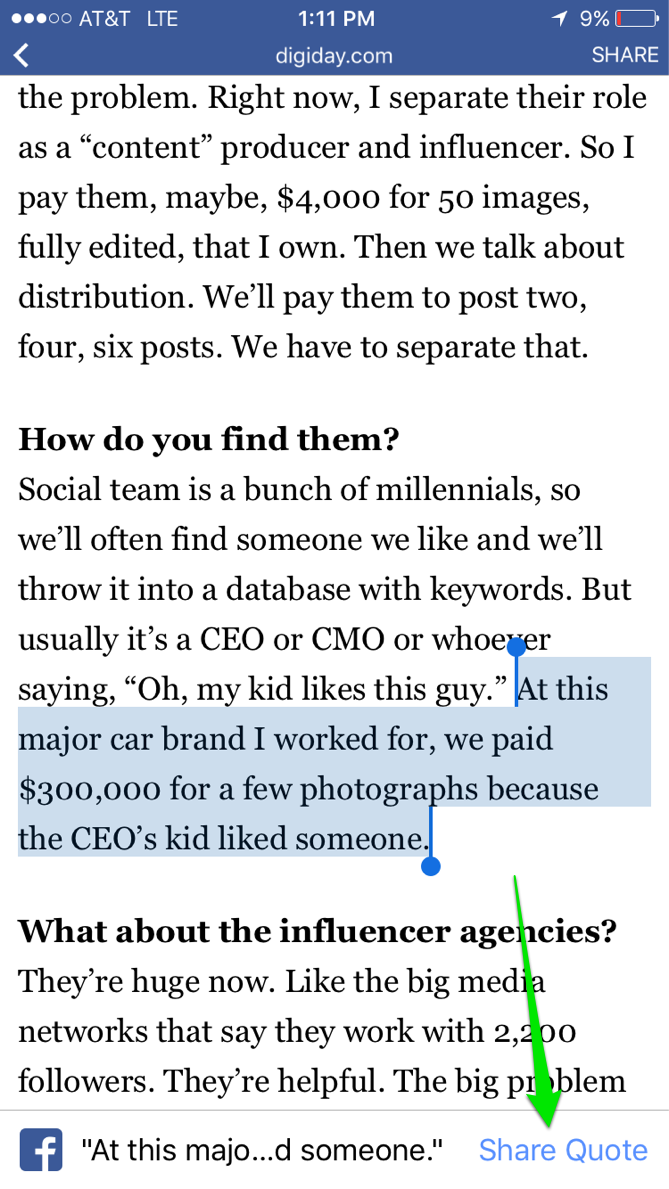
Image: Web page open in Facebook Browser

1. SELECT YOUR TEXT
2. Choose SHARE QUOTE

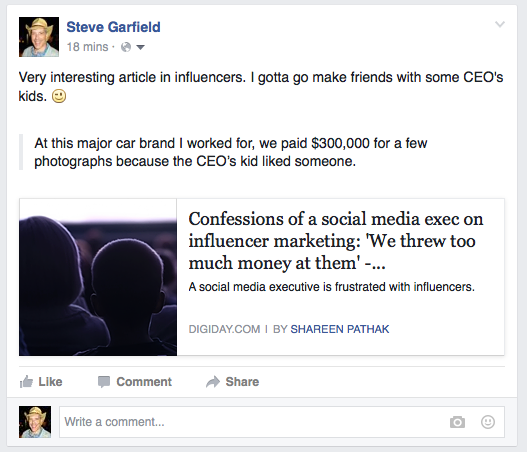
That shares the page you are on, over on Facebook, with the quoted text.

Looks pretty nice.


Image: Facebook Post with Selected text highlighted

Saturday, March 05, 2016

Gary Vaynerchuk #askgaryvee Book Promotion on Instagram

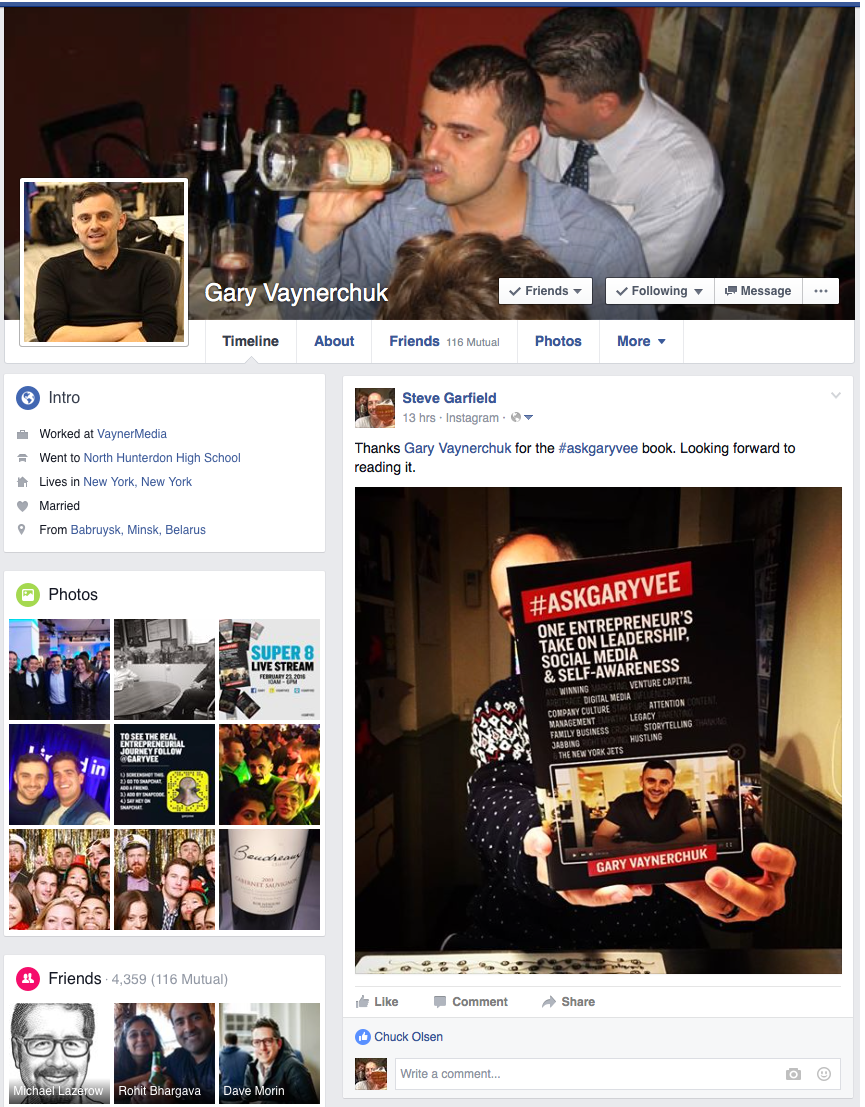
Gary Vaynerchuk #askgaryvee Book Promotion on Instagram as seen on Gary's Facebook wall.

It's interesting to see how Gary Vaynerchuk is using social media to promote his new book. He sent me a review copy and asked that I share on Instagram. I did that.

Thanks @garyvee for the #askgaryvee book. Looking forward to reading it.

A photo posted by Steve Garfield (@stevegarfield) on


I also shared the photo, from Instagram to Facebook. I linked to Gary, and he put my post on his Facebook page. That's cool.

Gary Vaynerchuk #askgaryvee Book Promotion on Instagram

I also saw him promoting his book on Snapchat. Over there he asked people to take a screenshot of a photo of him and his book that displayed the @askgaryvee hashtag, over on Instagram too. I shared that too.

Helping out @garyvee by sharing #askgaryveebook and this screenshot from snapchat.

A photo posted by Steve Garfield (@stevegarfield) on


I was too quick on the trigger though, and shared the photo just prior to the one Gary really wanted us to share.


That was ok because in the flood of images that got shared, mine stood out as different. ;-)

Instagram is the book promotion vehicle of 2016. It's getting a lot of traction, and the power of it is that you see every post from everyone that you follow.

Buy the book on Amazon.com:

#AskGaryVee: One Entrepreneur's Take on Leadership, Social Media, and Self-Awareness (Affiliate Link)

Wednesday, March 25, 2015

You Can Embed Video from the Game of Thrones Facebook Page on Your Blog

Oh look, in addition to sharing your own video on the web, you can share other public videos.


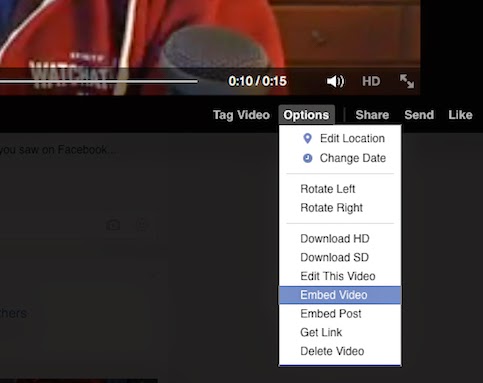
Click the CHEVRON (∨) on the top right, then SELECT EMBED VIDEO. Copy the EMBED code and paste it on your blog.

Here it is.

Cool.

25 days.Rally the realm. Watch a new clip from #GoTSeason5.

Posted by Game of Thrones on Wednesday, March 18, 2015

You Can Now Embed Facebook Video Outside of Facebook

Here's my Facebook video:

At the F8 Facebook Developer's Conference I just heard about a new feature that let's me embed Facebook videos elsewhere, this is a test of that. Starting with this Facebook video.

Posted by Steve Garfield on Wednesday, March 25, 2015

To Embed Facebook Video Outside of Facebook, here are the steps:

1. Upload Video to Facebook
2. Click on the PERMALINK of the Facebook post that has the video in it.
3. Click OPTIONS
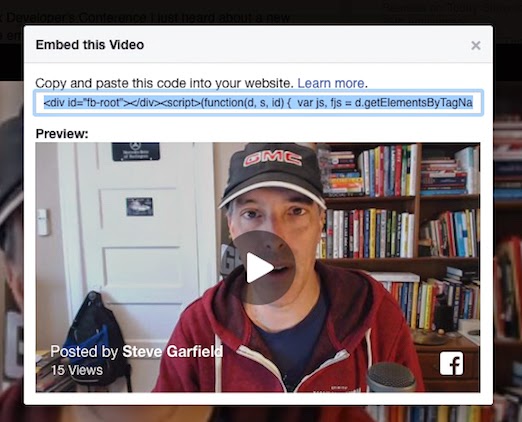
4 Click EMBED VIDEO


5. COPY the embed code and PASTE it on your site


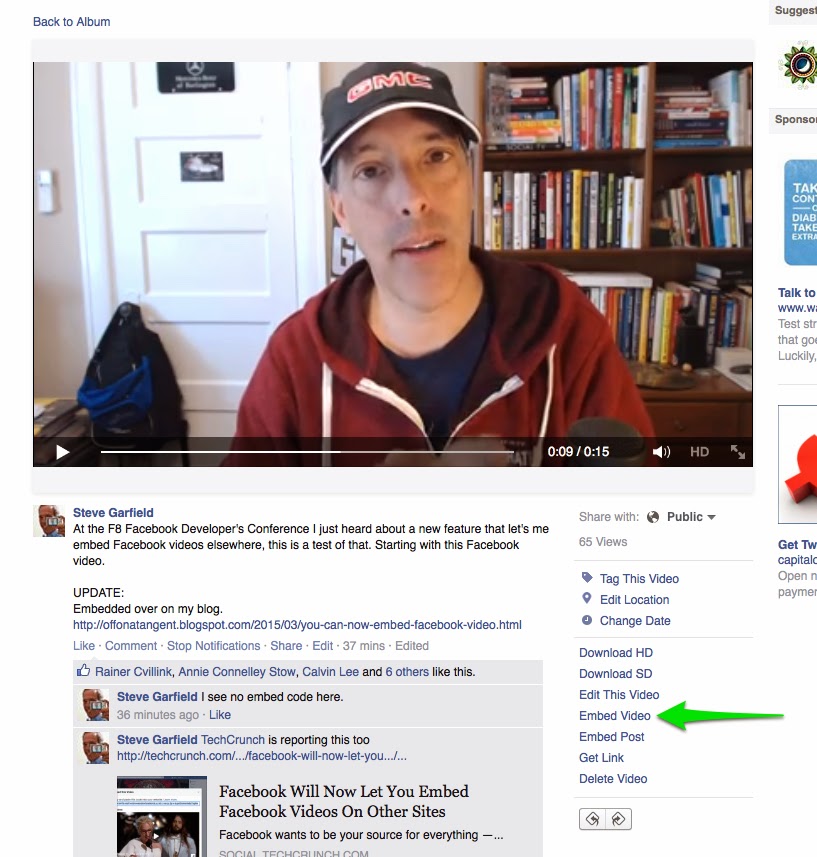
Additionally: EMBED VIDEO is also available from the Video's page in your Album.


This just in:

Embedded Video Player information from Facebook.

Monday, September 08, 2014

Facebook is adding video view count


Tuesday, March 05, 2013

How To See All Updates From Your Facebook Friends - Part 3: Custom Lists

The fool proof way To See All Updates From Your Facebook Friends is to create a Custom List.

Thanks Rob Usdin for reminding me about this.

From Facebook Help:
How do I add friends to existing lists or create a new list?
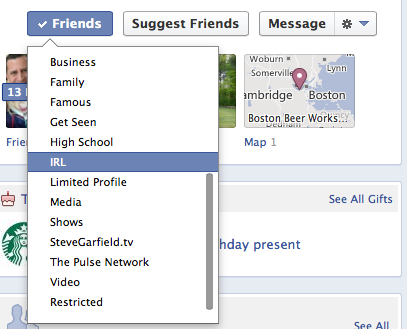
You can add individual friends to lists by hovering over the Friends button at the top of their timeline and selecting from the list names that appear. If you don't see the name of the list you're looking for, click the option to show all of your lists.

Note: To add someone to a list, they already have to have accepted your Friend Request.

Here are the steps.

Step 1:

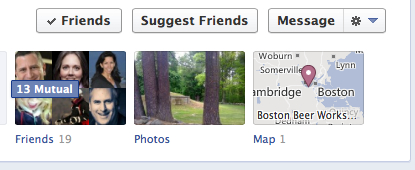
Click Friends


Step 2:

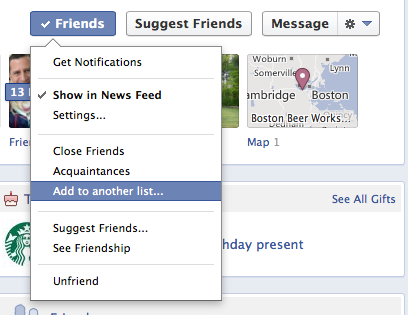
Click - Add to another list


Step 3:

Select the list you want to add your friend to. Ex: IRL


Step 4:

In the left hand column under Favorites, click on one of your custom lists, Ex: IRL, and you will see all posts from the friends that you have put on that list.


Earlier:

How To See All Updates From Your Facebook Friends - Part 2