I recently saw a video playing on The Tonight Show's Twitter timeline with an overlay link that said "Watch now at youtu.be"
What was cool about it was that it looked like it was a YouTube video, playing right on the twitter timeline.
But it wasn't! It's actually a native twitter video, playing on the twitter timeline, with a link over to YouTube.
Here's the story:
Usually, you have to click on the YouTube videos to get them to play on twitter.
So this lead me on a search to figure it out.
My friend David helped me with a tip, he told me that it was an mp4, uploaded to YouTube, and he provided a link to Google, where people were explaining how to do it.
This link was helpful, How To Add Links To Your Twitter Videos.
There, Mark Zhuk, explained, in November of 2016, that you need to have a Twitter Ads account to be able to add a link to a video.
Further research and testing, confirmed the process.
You need to sign up for a twitter ad account at ads.twitter.com.
Then you need to add a credit card to the account.
Then you can upload a video with a link to the same video on YouTube.
The YouTube video link you enter, gets overlayed on to your twitter video with the link text, "Watch now at youtu.be", giving the impression that the video is hosted over on YouTube, but it's not.
Here's my tweet with video, linked over to YouTube.
Labels
Categories: Food | Travel | Beer | Wine | Boston | Humor | TV | Tech | Pop Culture | Politics | Golf | Video | Photo | Auto
Sponsored: Samsung | Cadillac | Volt | GMC | AT&T | Gear List: Cameras, Lights, Microphones, etc.
More: SteveGarfield.com | Steve Garfield's Video Blog (archived 6/19/2013)
“As an Amazon Associate I earn from qualifying purchases.” | Mastodon
Sponsored: Samsung | Cadillac | Volt | GMC | AT&T | Gear List: Cameras, Lights, Microphones, etc.
More: SteveGarfield.com | Steve Garfield's Video Blog (archived 6/19/2013)
“As an Amazon Associate I earn from qualifying purchases.” | Mastodon
Showing posts with label video. Show all posts
Wednesday, June 24, 2020
Saturday, June 13, 2020
How To: Create Better Video From Home
If you've watched any late-night TV lately (Jimmy Fallon, SNL, or literally any other show producing remotely), you know that creating quality video from home is NOT easy! Even for TV veterans.
Video blogging pioneer and "Get Seen" author Steve Garfield of SteveGarfield.com shares some tips for creating better video from home.
We'll talk about audio quality, getting your background camera-ready, lighting tips, and more!
#Marketing Profs PRO video live stream interview with MarketingProfs' Kerry O'Shea Gorgone, and StoryLeader's Chris Brogan, about How To Create Better Video From Home.
AUDIO
Q: What's the most important part of video?
A: Audio
I've done research. If the video quality is less than perfect, but the audio is good, and the content is interesting, people will keep watching your video.
If the audio is bad, they will leave.
If you are recording with a smartphone, the closer you are to the device, the better your audio will be.
- Know where the microphone is, and talk into it.
To get better sound, add an external microphone, for a smartphone, video camera, or computer.
You can use a set of headphones with an attached microphone, or a standalone microphone.
One tip is to get a floor stand, and swing the microphone around to where you are sitting. That reduces any noise you might make by tapping on your desktop.
LIGHTING
For lighting, be aware of the light around you. If you are inside and near a window, have the window facing you instead of behind you. If the window is behind you, and you are using a webcam, it probably has auto exposure, and it will set exposure to the light behind you. That's not good.
In the above photo, I sat in front of the window to make sure this location was perfectly bad to start from.
The webcam is at desk level, looking up at me. The light is behind me, screwing up the auto exposure of the webcam.
This is the shot that lots of people use from their laptops webcams.
DO NOT DO THIS.
TIP: Raise the level of the webcam in your laptop camera to meet or line up just above your EYE LEVEL. You can easily do this with a stack of books.

In the above photo I've added light from TWO SOURCES, a MAIN light and a FILL light.
The main light is an LED light just to the right of my webcam. The fill light is my desk lamp with an LED bulb.
I also added a small LED light pointed up towards my bookcase as a back light to allow the webcam to see added depth, but it's small, and not too big to screw up the auto exposure of the webcam.
BACKGROUND
Set up your webcam and take a photo of where you will be sitting.

Look at the background. How do you think you might be rated by Room Rater on twitter? Take a look at his twitter feed and see what comments he makes on how to make backgrounds better.
In this example, after looking at the photo, I decided to move the webcam towards the left to allow more of the bookcase to show up on both sides of me, rather than having the black bookcase look like it was growing out of the top of my head. ;-)
Click through to Steve Garfield's Ultimate Video Gear List: Cameras, Microphones, and Lights to see a list of gear I use.
Labels:
audio,
lighting,
microphone,
video,
webcam
Friday, May 22, 2020
Using video technology to stay connected
NECN's Colton Bradford interviewed my mom and me about how she uses technology to stay connected:
Need a smile? Meet Millie Garfield. The self proclaimed “Internet’s Oldest Living Blogger” and she’s got a message for us all. #CallYourMother
cc: @NECN @TheHubToday @stevegarfield

My mom is one of the Internet's Oldest Bloggers according to The Ageless Project.
Need a smile? Meet Millie Garfield. The self proclaimed “Internet’s Oldest Living Blogger” and she’s got a message for us all. #CallYourMother
cc: @NECN @TheHubToday @stevegarfield
Need a smile? Meet Millie Garfield. The self proclaimed “Internet’s Oldest Living Blogger” and she’s got a message for us all. #CallYourMother cc: @NECN @TheHubToday @stevegarfield pic.twitter.com/ZImFYlN9E1
— Colton Bradford (@ColtonBradford) May 21, 2020

My mom is one of the Internet's Oldest Bloggers according to The Ageless Project.
wegads - Ed Weiland, born 1923
Age of Rieson - Marie MacBeath, born 1925
Last Quarter - Game of Life - Ralph Leonard, born 1925
My Mom's Blog - Mildred Garfield, born 1925
Not Dead Yet! - Judith Taylor, born 1927
Milts Muse - Milton Rebmann, born 1931
A Little Red Hen - Naomi Dagen Bloom, born 1933
Along The Way - Joared, born 1935
Occasional Pursuits - Patricia Torbert, born 1937
Light Sweet Crud - Rey Barry, born 1937
BLB's Xanga Site - Bonnie, born 1939
justaskjudy - Judy, born 1940
Labels:
blogger,
elder,
millie garfield,
necn,
technology,
video,
zoom
Thursday, May 14, 2020
HOW TO: Set Up Your First Facebook Messenger Room
Facebook is now rolling out Messenger Rooms to everyone. I tried it out for the first time, and had a chat with my niece. When I created my room, I allowed ALL FRIENDS to JOIN. After creating my room, on my computer browser, my phone rang with an invitiation!
Opps! Did Facebook Messenger Rooms just invite ALL MY FRIENDS with a message at 8:30 AM. D'OH! I don't think so, but I'm not sure. As I learn more I'll figure it out. I took screen shots of each screen in the process of setting up a room.
Here are the steps to set up a Facebook Messenger Room.

Image: Facebook asks you to Learn More or Create a Room

Image: Create Your Room options:
- Room Activity
- Who is invited?
- Start time
ROOM ACTIVITY:

Image: Room Activity Page 1

Image: Room Activity Page 2
WHI IS INVITED:

Image: Who is invited
Choose all your friends or specific people.

Image: Invite people
START TIME:

Image: Start Time
Select a start time.

Image: Trying Rooms. Invite.

Image: Join room

Image: Continue as YOU!

Image: My first room with my niece.
Facebook rooms. Bringing people together!

Image: Video and Audio controls

Image: What my Facebook page looks like after I left the room.
It looks like my room is still open after I leave it. Oh wiat, Jeff Cutler just asked me to join a room! It's my room!
I guess I can leave this open all day for friends to join.
Interesting.
UPDATE:
If you leave your room open to FRIENDS, any can join, even after you leave you room, if you leave it open. A friend from CT just joined a chat with my nephew. That never would have happened with Zoom.

Image: J. Bruce Jones and me. ;-)
Facebook is now rolling out Messenger Rooms to everyone. I tried it out for the first time, and had a chat with my niece. When I created my room, I allowed ALL FRIENDS to JOIN. After creating my room, on my computer browser, my phone rang with an invitiation!
Opps! Did Facebook Messenger Rooms just invite ALL MY FRIENDS with a message at 8:30 AM. D'OH! I don't think so, but I'm not sure. As I learn more I'll figure it out. I took screen shots of each screen in the process of setting up a room.
Here are the steps to set up a Facebook Messenger Room.

Image: Facebook asks you to Learn More or Create a Room

Image: Create Your Room options:
- Room Activity
- Who is invited?
- Start time
ROOM ACTIVITY:

Image: Room Activity Page 1

Image: Room Activity Page 2
WHI IS INVITED:

Image: Who is invited
Choose all your friends or specific people.

Image: Invite people
START TIME:

Image: Start Time
Select a start time.

Image: Trying Rooms. Invite.

Image: Join room

Image: Continue as YOU!

Image: My first room with my niece.
Facebook rooms. Bringing people together!

Image: Video and Audio controls

Image: What my Facebook page looks like after I left the room.
It looks like my room is still open after I leave it. Oh wiat, Jeff Cutler just asked me to join a room! It's my room!
I guess I can leave this open all day for friends to join.
Interesting.
UPDATE:
If you leave your room open to FRIENDS, any can join, even after you leave you room, if you leave it open. A friend from CT just joined a chat with my nephew. That never would have happened with Zoom.

Image: J. Bruce Jones and me. ;-)
Sunday, April 12, 2020
2020 is the Year of Live Videoblogging
16 years ago I was one of the first video bloggers. I figured out how to combine the ease of use of blogging with the power of video, to help people easily share stories.

Now, when many people are self-quarantined at home, to help flatten the spread of COVID-19, they are looking towards video to feel connected.
It makes sense.
Video has the power to help people connect through storytelling.
A lot has changed since 2005, when I made my first videoblog post. Five years later, I wrote the book on videoblogging for Wiley, Get Seen. Now, a good portion of that book is history. It's a history book. ;-) Containing many cameras, video making tools, and software that aren't around any more.
Now there are new tools.
Let's take the lessons learned from 15 years of online video making, and apply them to today, to give you the tools and techniques that will help you share your stories with video.
Includes Step-By-Step Guide on How to Get Started on Zoom.
TOOLS
Use the camera that you have on you. please do not get intimidated by feeling like you have to have a professional set up. You don't. The quality of today's smartphones are amazing for both video and audio.
Smartphone: iPhone. You can use either the front or back camera.
Webcam: Logitech C920. Tis is the camera I use. It works great. For a higher end webcam, look at the Brio.
Microphone: Audio Technica ATR2500x-USB. Good audio is more important that good video. Have you ever joined a Facebook live stream where you can't hear the speaker because of audio problems? See? This microphone is great. You can also get a floor stand for it, so that it is not disturbed by any noise you might make on your desk.
Lighting: This is the light that all the cool kids are using, LED Ring Light like the Neewer 18-inch White LED Ring Light with Silver Light Stand, that you can find online. If you don't have that, a desk lamp, positioned to one side behind your camera is good, also good is natural light coming in from a window. DO NOT, have a window behind you!
Tripod: Use a tripod to get a steady shot.
TECHNIQUES
1. Make your camera lens a little above eye level. If you have a laptop, DO NOT leave it on your desk. Raise it to eye level by placing some BOOKS UNDER it. PLEASE DO THIS.
2. Look into the lens when talking and not at the screen. This gives the impression of eye contact which enhances your connection with the viewer.
3. Know where you mic is, and talk into it.
4. If you are in a shot with multiple people, like in an interview, make your framing match the interviewer.
5. Don't leave extra headroom.

Image: BEFORE - Too much headroom

Image: AFTER - Extra headroom removed. ;-)
6. Use software to make your videos more interesting, see the next section.
SOFTWARE
iMovie: When I wan to do more than a one-shot, where I record and post, I use iMovie on the iPhone or Mac.
This allows you to shoot multiple segments, and add them together to make one video. For exaple, if I was making a video that had three points I wanted to make, I could shoot five videos and then combine them.
Introduction, point 1, point 2, point 3, and conclusion. That way you can focus on one small thing at a time, rather than thinking that you have one shot to get all five video right. It gives you a way to shoot each segment multiple times until you like it. Also, you don't have to memorize anything. Plus, you can use different camera angles for each video. That provides interest to the viewer.
HOSTING
Facebook, Instagram and YouTube make it easy to share video online. When you decide where to put your video, you'll want to share it where your audience is. Do you have a lot of friends on Facebook, that's where you can post. Are you an Instagram 'Influencer'? You can post video there, or to your Instagram story. If you choose YouTube, you can also share the link to that video on Facebook and your other social media accounts.
LIVE STREAMING
FACEBOOK
Facebook as a button that you can click to go live in the posting options, LIVE VIDEO.

Image: Facebook Live
ECamm Live and Streamyard are tools that you can use to present a more professional presentation with using Facebook live.
ZOOM: Step-By-Step Guide on How to Get Started on Zoom.
To get started on Zoom, go to Zoom.us, sign up, and follow the prompts to download the Zoom app on your device.
When you join a Zoom video chat, you need to allow your MIC and CAMERA to be shared. When you join, you may be prompted to " Join with computer audio", do that.
Here are some screens you might see when joining your first Zoom chat. They are presented to you so that you can CHOOSE and TEST your CAMERA AND MICROPHONE:

Image: Click 'OPEN zoom.us.app' if you are presented with this dialog box.

Image: Join with Video. Yes! Join with Video, CLICK THAT!

Image: Check your position in the frame and your lighting.

Image: Test your computer speaker. See how the dialog box displays "Speaker 2: Built-in Output (Headphones)", that shows which speaker you are using. if that doesn't work, make sure your speaker works by playing something, otherwise, choose another speaker using the greater than/less than, on it's side drop down window selection tool.

Image: Test your microphone. My AT2020 USB mic is selected in tis dialog box.

Image: CLICK "Join with Computer Audio"
Then when you are in a chat, for example, on a computer, if other people are complaining that THEY CAN'T SEE YOU, look for an image of a camera with a red line through it at the bottom left of your screen, click on that to allow zoom to access your camera.

Image: No video on ZOOM? Click Here.
It's easy, my mom, Millie (94) uses it!

Image: Ask Millie On Zoom
TEST: Join this TEST ZOOM MEETING to check your camera and microphone.
HELPFUL ARTICLES AND SITES
Mitch Joel, How To Rock Zoom Meetings In 10 Easy Steps.
Live Streaming Pros: Luria Petrucci
People to watch live:
Joseph Jaffe: Live every day at 2:00 PM EDT on Facebook: https://facebook.com/jaffejuice
Laura Gassner Otting: Live every day at 10:00 AM EDT on Facebook: https://www.facebook.com/laura.gassner.otting
Chris Brogan: Live every day at 10:00 AM EDT on Facebook: https://www.facebook.com/broganchris

Now, when many people are self-quarantined at home, to help flatten the spread of COVID-19, they are looking towards video to feel connected.
It makes sense.
Video has the power to help people connect through storytelling.
A lot has changed since 2005, when I made my first videoblog post. Five years later, I wrote the book on videoblogging for Wiley, Get Seen. Now, a good portion of that book is history. It's a history book. ;-) Containing many cameras, video making tools, and software that aren't around any more.
Now there are new tools.
Let's take the lessons learned from 15 years of online video making, and apply them to today, to give you the tools and techniques that will help you share your stories with video.
Includes Step-By-Step Guide on How to Get Started on Zoom.
TOOLS
Use the camera that you have on you. please do not get intimidated by feeling like you have to have a professional set up. You don't. The quality of today's smartphones are amazing for both video and audio.
Smartphone: iPhone. You can use either the front or back camera.
Webcam: Logitech C920. Tis is the camera I use. It works great. For a higher end webcam, look at the Brio.
Microphone: Audio Technica ATR2500x-USB. Good audio is more important that good video. Have you ever joined a Facebook live stream where you can't hear the speaker because of audio problems? See? This microphone is great. You can also get a floor stand for it, so that it is not disturbed by any noise you might make on your desk.
Lighting: This is the light that all the cool kids are using, LED Ring Light like the Neewer 18-inch White LED Ring Light with Silver Light Stand, that you can find online. If you don't have that, a desk lamp, positioned to one side behind your camera is good, also good is natural light coming in from a window. DO NOT, have a window behind you!
Tripod: Use a tripod to get a steady shot.
TECHNIQUES
1. Make your camera lens a little above eye level. If you have a laptop, DO NOT leave it on your desk. Raise it to eye level by placing some BOOKS UNDER it. PLEASE DO THIS.
2. Look into the lens when talking and not at the screen. This gives the impression of eye contact which enhances your connection with the viewer.
3. Know where you mic is, and talk into it.
4. If you are in a shot with multiple people, like in an interview, make your framing match the interviewer.
5. Don't leave extra headroom.

Image: BEFORE - Too much headroom

Image: AFTER - Extra headroom removed. ;-)
6. Use software to make your videos more interesting, see the next section.
SOFTWARE
iMovie: When I wan to do more than a one-shot, where I record and post, I use iMovie on the iPhone or Mac.
This allows you to shoot multiple segments, and add them together to make one video. For exaple, if I was making a video that had three points I wanted to make, I could shoot five videos and then combine them.
Introduction, point 1, point 2, point 3, and conclusion. That way you can focus on one small thing at a time, rather than thinking that you have one shot to get all five video right. It gives you a way to shoot each segment multiple times until you like it. Also, you don't have to memorize anything. Plus, you can use different camera angles for each video. That provides interest to the viewer.
HOSTING
Facebook, Instagram and YouTube make it easy to share video online. When you decide where to put your video, you'll want to share it where your audience is. Do you have a lot of friends on Facebook, that's where you can post. Are you an Instagram 'Influencer'? You can post video there, or to your Instagram story. If you choose YouTube, you can also share the link to that video on Facebook and your other social media accounts.
LIVE STREAMING
Facebook as a button that you can click to go live in the posting options, LIVE VIDEO.

Image: Facebook Live
ECamm Live and Streamyard are tools that you can use to present a more professional presentation with using Facebook live.
ZOOM: Step-By-Step Guide on How to Get Started on Zoom.
To get started on Zoom, go to Zoom.us, sign up, and follow the prompts to download the Zoom app on your device.
When you join a Zoom video chat, you need to allow your MIC and CAMERA to be shared. When you join, you may be prompted to " Join with computer audio", do that.
Here are some screens you might see when joining your first Zoom chat. They are presented to you so that you can CHOOSE and TEST your CAMERA AND MICROPHONE:

Image: Click 'OPEN zoom.us.app' if you are presented with this dialog box.

Image: Join with Video. Yes! Join with Video, CLICK THAT!

Image: Check your position in the frame and your lighting.

Image: Test your computer speaker. See how the dialog box displays "Speaker 2: Built-in Output (Headphones)", that shows which speaker you are using. if that doesn't work, make sure your speaker works by playing something, otherwise, choose another speaker using the greater than/less than, on it's side drop down window selection tool.

Image: Test your microphone. My AT2020 USB mic is selected in tis dialog box.

Image: CLICK "Join with Computer Audio"
Then when you are in a chat, for example, on a computer, if other people are complaining that THEY CAN'T SEE YOU, look for an image of a camera with a red line through it at the bottom left of your screen, click on that to allow zoom to access your camera.

Image: No video on ZOOM? Click Here.
It's easy, my mom, Millie (94) uses it!

Image: Ask Millie On Zoom
TEST: Join this TEST ZOOM MEETING to check your camera and microphone.
HELPFUL ARTICLES AND SITES
Mitch Joel, How To Rock Zoom Meetings In 10 Easy Steps.
Live Streaming Pros: Luria Petrucci
People to watch live:
Joseph Jaffe: Live every day at 2:00 PM EDT on Facebook: https://facebook.com/jaffejuice
Laura Gassner Otting: Live every day at 10:00 AM EDT on Facebook: https://www.facebook.com/laura.gassner.otting
Chris Brogan: Live every day at 10:00 AM EDT on Facebook: https://www.facebook.com/broganchris
Tuesday, November 08, 2016
Hear from real Americans this Election Day as they share who they voted for and why LIVE today on Facebook.
Hear from real Americans this Election Day, not pundits and projections. Exit Poll is bringing you the voices of voters all across this country as they share who they voted for and why LIVE today on Facebook.
Download the app and share your video to be featured: http://exitpoll.live
Facebook Page: Exit Poll Live
Thursday, June 23, 2016
Friday, June 17, 2016
Step-By-Step Video Creation Tool from YouTube: YouTube Director for Business
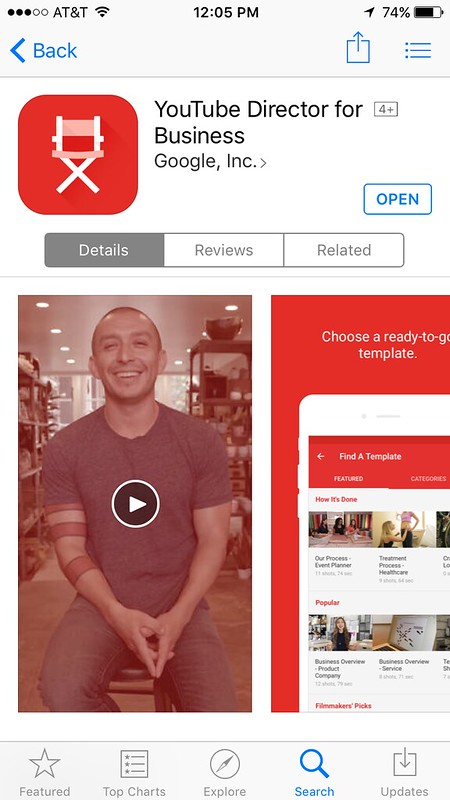
YouTube has a new Step-By-Step Video Creation Tool for iOS that makes it easy for you to tell your business' story, it's called YouTube Director for Business.
Here's the description from the App Store:

Image: YouTube Director for Business
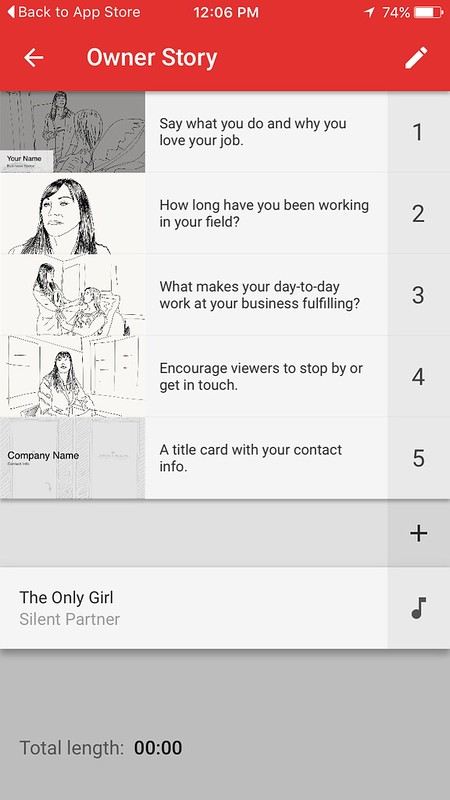
Once you download and run the app, you can choose what type of video you want to make. Here are the steps for a Owner Story:

Image: YouTube Director for Business Video Creation Steps
The prompts for what to shoot and how are like a film school in your hand. In addition to telling you what to shoot and giving examples of what to say, when you turn on your camera, the viewer gives you an outline to help you position your speaker.
I made this short video in a few minutes.
Here's the description from the App Store:
YouTube Director provides shot-by-shot guidance—so you can create a high-quality video ad and upload it right from the app. No video editing experience required. Now, sharing your unique story with customers on YouTube is easy.
CHOOSE A READY-TO-GO TEMPLATE
Browse from 100+ video templates designed for businesses just like yours.
Whether you’re a restaurant, service, retail shop or anything in-between, YouTube Director has a template that lets you tell your story, showcase your products, and highlight your mission.
STEP-BY-STEP INSTRUCTIONS
First-time making a video? No problem. YouTube Director provides shot-by-shot guidance to help you create a polished video for your business.
YouTube Director helps you with everything from how to frame your video to what to say, and when.
NO EDITING SKILLS REQUIRED
Easy-to-use features like voiceover and custom text animations give your video a professional look.
Add the perfect soundtrack to your video with music from YouTube’s extensive library.
PROMOTE YOUR VIDEO ON YOUTUBE
Upload your finished video to YouTube and start promoting your business to customers.
An AdWords expert will reach out to help you run your new video ad on YouTube.

Image: YouTube Director for Business
Once you download and run the app, you can choose what type of video you want to make. Here are the steps for a Owner Story:

Image: YouTube Director for Business Video Creation Steps
The prompts for what to shoot and how are like a film school in your hand. In addition to telling you what to shoot and giving examples of what to say, when you turn on your camera, the viewer gives you an outline to help you position your speaker.
I made this short video in a few minutes.
Monday, June 06, 2016
Virtual Online Meetings with Video Using Blab: Boston Media Makers
Boston Media Makers been meeting at Doyle's Café in Jamaica Plain, MA for 11 years. This is the first year that we took the Summer off.
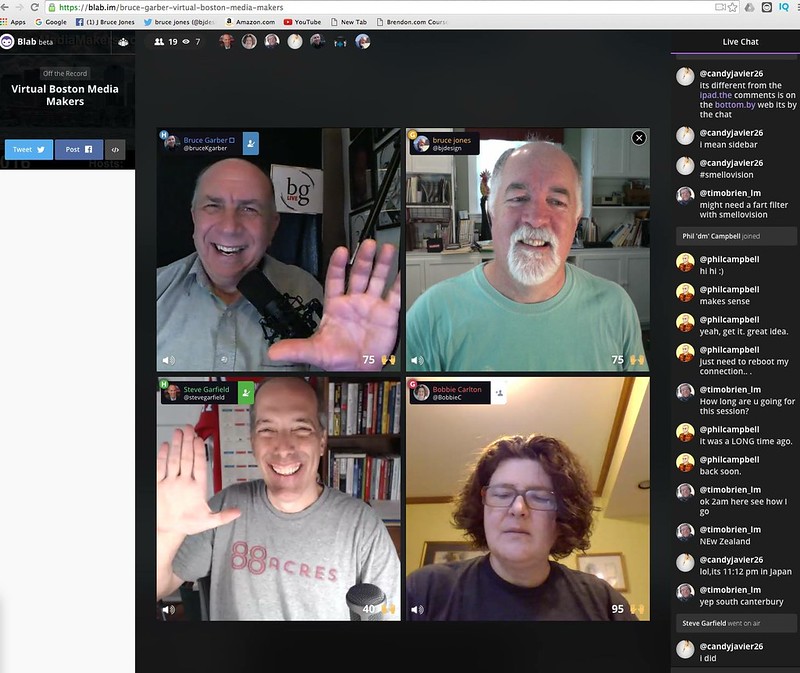
Bruce Garber helped run our first Virtual meeting. We used blab.im, one of the many video conferencing solutions out there.
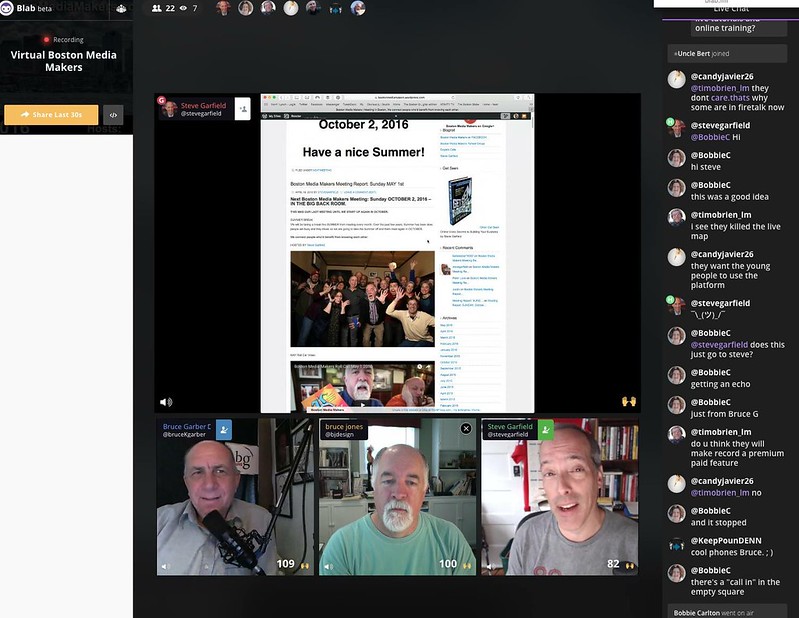
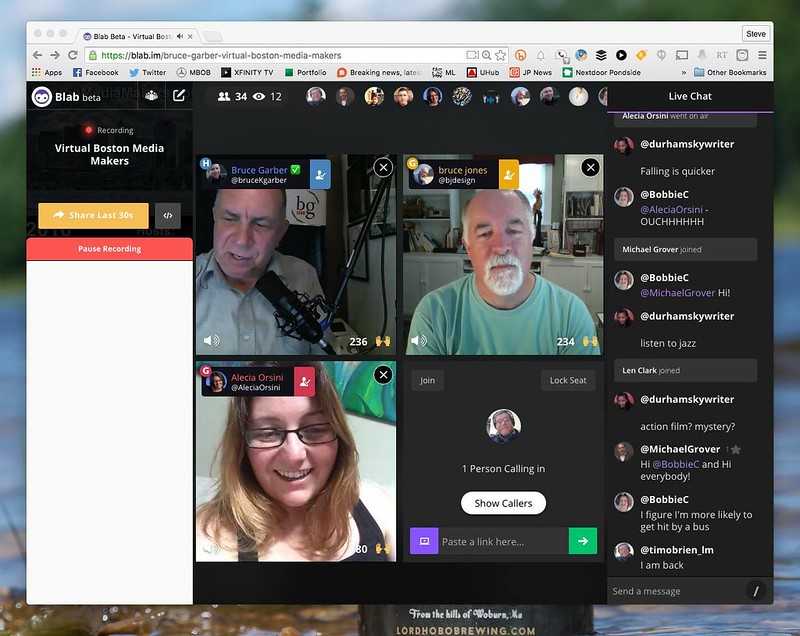
Here's what it looked like:
The benefits if blab.im as a video conferencing platform:
1. Easy to use
2. No echo
3. Very clear video with no discernible lag
4. Quickly produced links to radio and video download
5. Embed code (see above) for the video chat. Note: You can pause and resume recording during the chat.
6. Multiple moderators
7. Screen share
8. YouTube video share
Here are some screen captures of our chat:

Image: Chat

Image: Sharing a webpage

Image: Three people chatting with room for one more
Bruce Garber helped run our first Virtual meeting. We used blab.im, one of the many video conferencing solutions out there.
Here's what it looked like:
The benefits if blab.im as a video conferencing platform:
1. Easy to use
2. No echo
3. Very clear video with no discernible lag
4. Quickly produced links to radio and video download
5. Embed code (see above) for the video chat. Note: You can pause and resume recording during the chat.
6. Multiple moderators
7. Screen share
8. YouTube video share
Here are some screen captures of our chat:

Image: Chat

Image: Sharing a webpage

Image: Three people chatting with room for one more
Labels:
blab,
bmm,
conferencing,
tech,
video
Thursday, May 12, 2016
We Don't Do Any Business At The Front Door, Thank You
Video: Ring Video Doorbell Front Door Accepted Call, Today 7∶08PM
We live on the third floor. This solicitor came to the door earlier, and I went down to the front door and missed her.
Then I thought, why am I going down to the front door when I can answer it with the new Ring Video Doorbell that I just installed to review?
She came back!
I answered the door with the Ring Video Doorbell.
"We Don't Do Any Business At The Front Door, Thank You"
Success.
Note: That's my standard answer to door to door solicitors.
Buy on Amazon: Ring Wi-Fi Enabled Video Doorbell (Affiliate Link)
#REVIEW
Wednesday, April 27, 2016
The Ring Video Doorbell Now Gives You A Live View On Demand
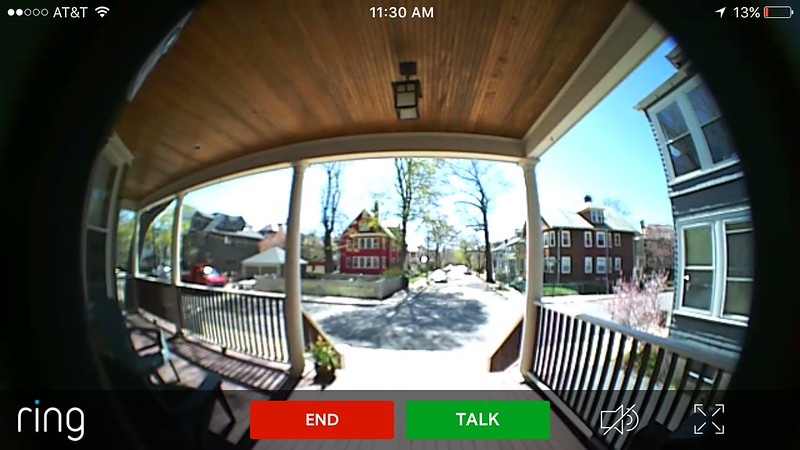
Ring.com just introduced to Live View.
From their email:
You can now see and talk to anyone at your home, on demand. Check in with your family and keep an eye on your home, anytime night or day.

IMAGE: RING APP
To use Live View, simply open the Ring app on your mobile device, select your Video Doorbell and then tap Live View.

IMAGE: Ring Video Doorbell Live View
Live View is currently available to select users with hardwired devices only. Your Live View stream may take a few seconds to load.
Read my post: Ring Video Doorbell Installation
From their email:
You can now see and talk to anyone at your home, on demand. Check in with your family and keep an eye on your home, anytime night or day.

IMAGE: RING APP
To use Live View, simply open the Ring app on your mobile device, select your Video Doorbell and then tap Live View.

IMAGE: Ring Video Doorbell Live View
Live View is currently available to select users with hardwired devices only. Your Live View stream may take a few seconds to load.
Read my post: Ring Video Doorbell Installation
Friday, February 26, 2016
New YouTube Custom Blurring Feature works on moving people.
Google launches Custom Blurring feature on YouTube; users can draw box around object or person they wish to keep from being seen; YouTube blurs out boxed item, even if it moves in the frame; feature can be found in Blurring Effects tab of enhancements tool. via LAUNCH

Image: Choose automatic or custom

Image: In custom mode, choose what you want to blur, and for how long.
Monday, December 28, 2015
4 Tips for Great Webcam Video
1. Get to the Point.
Don't rehash 'last week's show' or get sidetracked.
2. Listen for Great Sound.
Sound is the most important part of video. Use an external mic if you have one. It makes a difference.
3. Look for the Light.
Additional light is good. Light up the background too. Don't sit with a window behind you, have the window behind the camera, shedding light on the subject, you!
4. Position the Camera at Eye Level.
Look me in the eye. When recording yourself talking, or live streaming an interview or broadcast, raise the camera to eye level. If you have a laptop with an inbuilt camera, don't leave it sitting on your desk, raise it up with something like a stack of books.
1. Get to the Point.
Don't rehash 'last week's show' or get sidetracked.
2. Listen for Great Sound.
Sound is the most important part of video. Use an external mic if you have one. It makes a difference.
3. Look for the Light.
Additional light is good. Light up the background too. Don't sit with a window behind you, have the window behind the camera, shedding light on the subject, you!
4. Position the Camera at Eye Level.
Look me in the eye. When recording yourself talking, or live streaming an interview or broadcast, raise the camera to eye level. If you have a laptop with an inbuilt camera, don't leave it sitting on your desk, raise it up with something like a stack of books.
4 Tips for Great Webcam Video 1. Get to the Point. Don't rehash 'last week's show' or get sidetracked.2. Listen for...
Posted by Steve Garfield on Tuesday, December 22, 2015
Friday, October 09, 2015
How to Upload a Video on Twitter.com
How to upload a video to twitter from a browser.
GO TO twitter.com
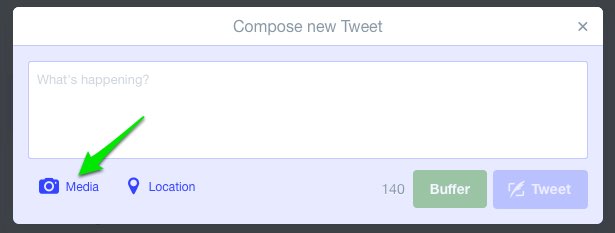
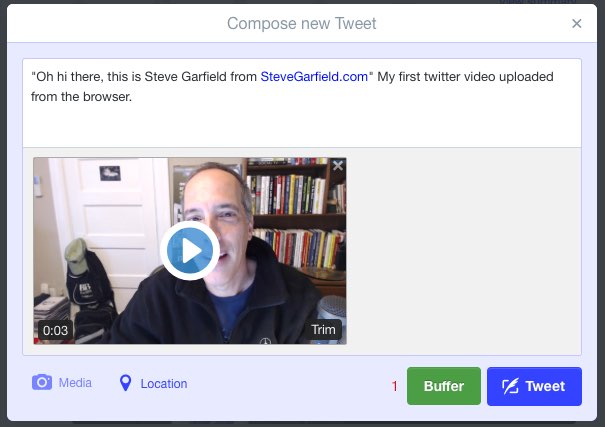
CLICK TWEET

CLICK MEDIA

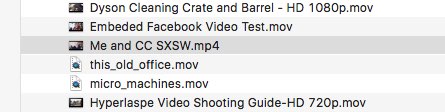
SELECT A VIDEO

More details about formats, from the twitter blog:
TRIM
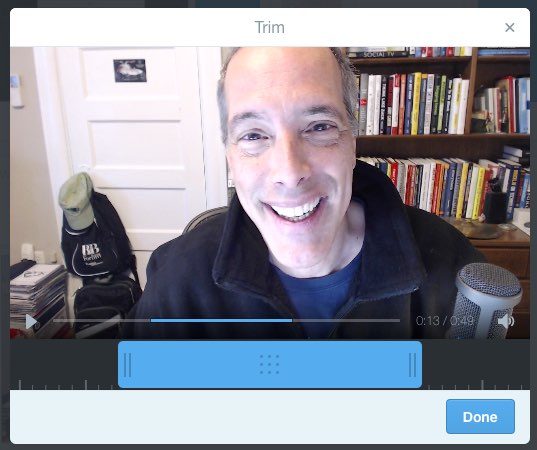
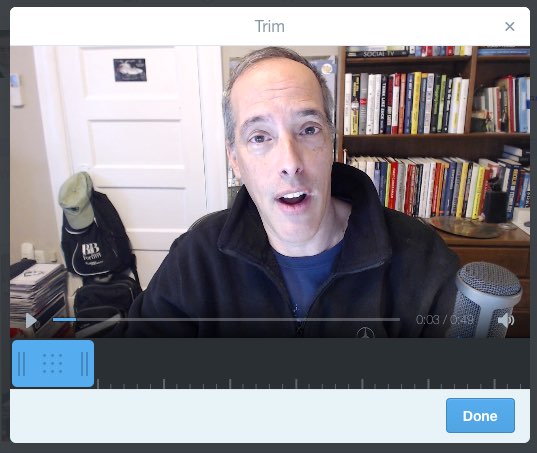
Now you will be presented with the video in a window that lets you trim the length to 30 seconds or less.

CLICK DONE

COMPOSE
Add any text to your tweet.

CLICK TWEET
Click TWEET to share it. After you do that, you'll see a progress indicator showing that your video is uploading.
Then you'll see it processing.
HERE IS THE EMBEDDED TWEET WITH MEDIA INCLUDED:
You can also embed the media only:
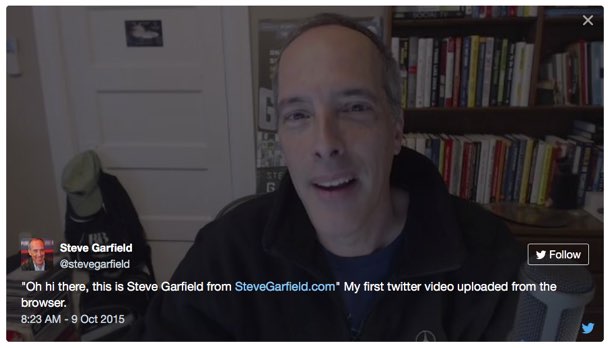
Note that a link back to the user and the tweet is embedded into the video for credit.
Click the user name and you go to the user's tweet stream. Click the twitter icon and you see the original tweet.
GO TO twitter.com
CLICK TWEET

CLICK MEDIA

SELECT A VIDEO

More details about formats, from the twitter blog:
What video formats do you support?
We currently support MP4 and MOV video formats on mobile apps.
On the web, we support the MP4 video format with H264 format with AAC audio. You can upload videos up to 512MB, however you will be prompted to edit videos to 30 seconds or less in length.
What are the limitations on video resolutions and aspect ratios that can be uploaded on the web?
Minimum resolution: 32 x 32
Maximum resolution: 1920 x 1200 (and 1200 x 1900)
Aspect ratios: 1:2.39 - 2.39:1 range (inclusive)
Maximum frame rate: 40 fps
Maximum bitrate: 25 Mbps
TRIM
Now you will be presented with the video in a window that lets you trim the length to 30 seconds or less.

CLICK DONE

COMPOSE
Add any text to your tweet.

CLICK TWEET
Click TWEET to share it. After you do that, you'll see a progress indicator showing that your video is uploading.
Then you'll see it processing.
HERE IS THE EMBEDDED TWEET WITH MEDIA INCLUDED:
"Oh hi there, this is Steve Garfield from http://t.co/y2xpPUPSyz" My first twitter video uploaded from the browser. pic.twitter.com/atljU89lDQ
— Steve Garfield (@stevegarfield) October 9, 2015You can also embed the media only:
"Oh hi there, this is Steve Garfield from http://t.co/y2xpPUPSyz" My first twitter video uploaded from the browser. pic.twitter.com/atljU89lDQ
— Steve Garfield (@stevegarfield) October 9, 2015 Note that a link back to the user and the tweet is embedded into the video for credit.
Click the user name and you go to the user's tweet stream. Click the twitter icon and you see the original tweet.
Subscribe to:
Posts (Atom)