Labels

Categories: Food | Travel | Beer | Wine | Boston | Humor | TV | Tech | Pop Culture | Politics | Golf | Video | Photo | Auto
Sponsored: Samsung | Cadillac | Volt | GMC | AT&T | Gear List: Cameras, Lights, Microphones, etc.
More: SteveGarfield.com | Steve Garfield's Video Blog (archived 6/19/2013)
“As an Amazon Associate I earn from qualifying purchases.” | Mastodon
Showing posts with label youtube. Show all posts

Wednesday, June 24, 2020

How To Play a YouTube Video On Your Twitter Timeline

I recently saw a video playing on The Tonight Show's Twitter timeline with an overlay link that said "Watch now at youtu.be"


What was cool about it was that it looked like it was a YouTube video, playing right on the twitter timeline. 

But it wasn't! It's actually a native twitter video, playing on the twitter timeline, with a link over to YouTube

Here's the story:

Usually, you have to click on the YouTube videos to get them to play on twitter. 

So this lead me on a search to figure it out. 

My friend David helped me with a tip, he told me that it was an mp4, uploaded to YouTube, and he provided a link to Google, where people were explaining how to do it. 

This link was helpful, How To Add Links To Your Twitter Videos.

There, Mark Zhuk, explained, in November of 2016, that you need to have a Twitter Ads account to be able to add a link to a video. 

Further research and testing, confirmed the process. 

You need to sign up for a twitter ad account at ads.twitter.com

Then you need to add a credit card to the account. 

Then you can upload a video with a link to the same video on YouTube. 

The YouTube video link you enter, gets overlayed on to your twitter video with the link text, "Watch now at youtu.be", giving the impression that the video is hosted over on YouTube, but it's not. 

Here's my tweet with video, linked over to YouTube


Sunday, June 14, 2020

How To Get Started with StreamYard, a live streaming studio in your browser

Lots of people are using StreamYard to live stream shows, to sites like Facebook and YouTube, and including guests, with the added ability to share their screen. Streamyard is different from some other solutions since it's web based, you don't have to download any software to use it.


You can get started on a FREE account, and then upgrade if you want additional features.

The easiest way to create professional live streams.
StreamYard is a live streaming studio in your browser. Interview guests, share your screen, and much more. Stream directly to Facebook, YouTube, LinkedIn, and other platforms.

I signed up and can show you the steps to get started to remove the mystery of live streaming. It's easy.

Sign Up
Sign up at StreamYard by entering your email, and then confirming with them that you are a real person and not a robot.

Then you can start a broadcast. I'll show you how.

Here we go!

1. Connect an account to StreamYard. Once connected, you can stream to it as often as you like.


Lots of choices here, Facebook, LinkedIn, YouTube, Periscope, Twitch, or Custom RTMP.

2. I'll pick Facebook to start.

Authorize Facebook.


3. Create a broadcast.

Want to try it out before going live? Create a broadcast and choose "Record only".


4. Create a TEST BROADCAST - RECORD ONLY


5. Let's Check your camera and mic


CLICK: ENTER BROADCAST STUDIO

6. Sharing a Single Shot


7. Sharing a Screen


8. Showing Viewer Comments


CONCLUSION
Streamyard is provides an easy was to get started in live streaming that allows you to both include guests, and sharing your desktop. Try it, what have you got to lose? ;-)


Join StreamYard - Disclosure.
Join StreamYard and you'll get $10 in credit. Once you've spent $25 with them, I'll get $25 in credit.

Pricing (Annual Plans)

Sunday, December 29, 2019

How To: Getting Netflix, Amazon Prime Video, Hulu, Disney+, YouTube and CBS All Access on Sony Android TV

I'm planning for the imminent installation of my SONY A9G Master SERIES OLED 4K ULTRA HD HDR 65” TV.

Here's how to get Netflix, Amazon Prime Video, Hulu, Disney+, YouTube and CBS All Access through the Android TV apps on the TV. HBO and Starz will be through Comcast Xfinity, and Apple TV+ will be through my Apple TV box.

Over time the majority of these apps will be available via the Comcast Xfinity X1 box, and not require separate apps.


NETFLIX
Some of the Netflix ready devices include a NETFLIX button on the supplied remote that can be used to launch the app. If the remote for your Netflix ready device doesn't include a NETFLIX button, the app can be accessed by pressing the HOME button, and then navigating to the Netflix app. I am subscribing to Netflix through a Comcast Xfinity package.

AMAZON PRIME VIDEO
The Android TV™ supports 4K streaming of the Amazon® Instant Video app. To enjoy 4K streaming of the Amazon Instant Video app, download and install the latest software update for the Android TV. Amazon Prime Video is included with Amazon Prime.

HULU
There is one Hulu app on all of our Android TVs. The service you receive will depend on your Hulu subscription plan. I am paying for Hulu without commercial.

Disney+
The Disney+ Android app can be installed from Google Play™ Store or Sony Select on your Android TV. I bought a three year subscription to Disney+.

YouTube
You can play 4K movies on the YouTube® app with a compatible Android TV™. Free.

CBS ALL ACCESS
If you own an Android TV you can use the official CBS All Access app from the Google Play Store. I will be subscribing through the CBS All Access app.

COMCAST Xfinity Box
- HBO
- STARZ

Note: To make things easier, bundled in with the Comcast Xfinity interface, you can also get these streaming services via the X1 box:
- Netflix
- Amazon Prime Video
- YouTube

Coming Soon:
- Hulu
- CBS All Access

APPLE TV Box
- Apple TV+

More:
Setup and Troubleshooting Video Streaming Services
This page provides common Setup and Troubleshooting information for Netflix, Amazon Prime Video, Hulu, Disney+, and YouTube.

Sunday, September 17, 2017

Use this trick to watch Google Play movies on your Amazon Fire TV Stick

Google Play just gave me a 99 cent promo to buy a movie. I clicked through and bought Guardians of the Galaxy 2 and then went to watch it on my Amazon Fire TV Stick.

Oops.

There's no Google Play app on the Amazon Fire TV Stick.

I found this post explaining, Use this trick to watch Google Play movies on your Apple TV.

The tips work for the Amazon Fire TV Stick too.

1. Download the YouTube.com app.

2. Open the Amazon Fire TV Stick YouTube.com app.

3. Authorize via web.

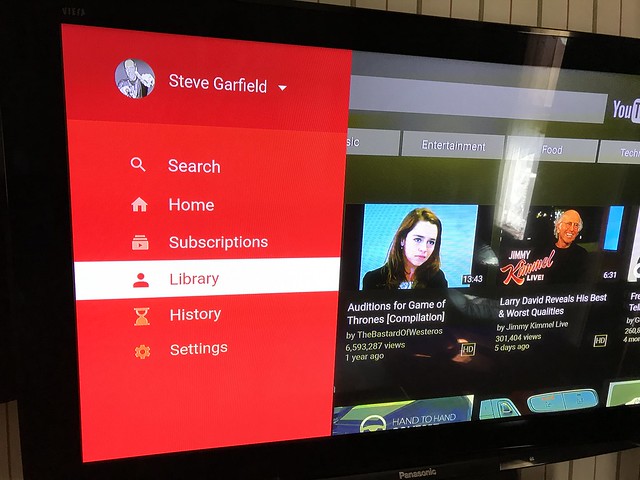
4. Then go to the YouTube.com app menu and choose Library.

YouTube on Amazon Fire TV Stick
Image: YouTube.com menu - Library

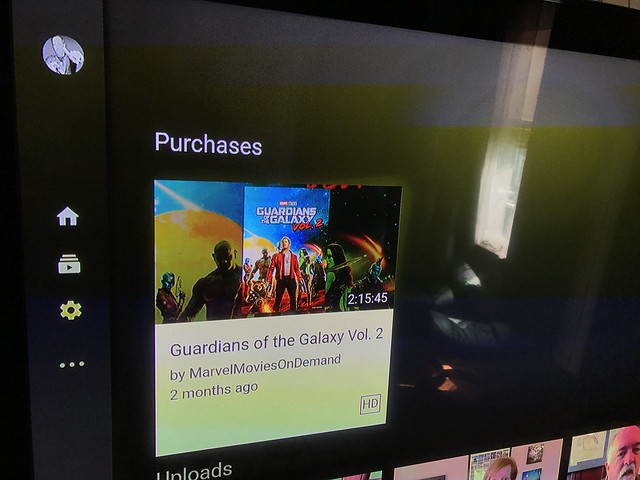
5. Then scroll down to Purchases.

YouTube on Amazon Fire TV Stick
Image: YouTube.com menu - Purchases

There's your purchased Google Play movie!

Update:

It won't play!


Wait! What?

Is it just this movie?

Let me know your experience.

Friday, June 17, 2016

Step-By-Step Video Creation Tool from YouTube: YouTube Director for Business

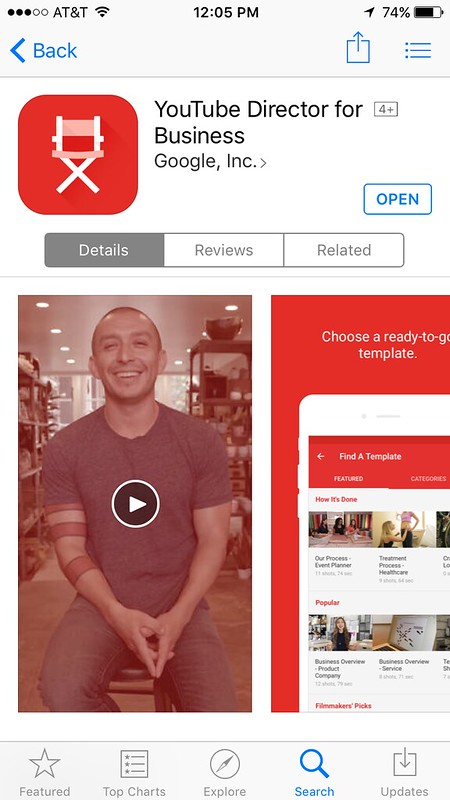
YouTube has a new Step-By-Step Video Creation Tool for iOS that makes it easy for you to tell your business' story, it's called YouTube Director for Business.

Here's the description from the App Store:
YouTube Director provides shot-by-shot guidance—so you can create a high-quality video ad and upload it right from the app. No video editing experience required. Now, sharing your unique story with customers on YouTube is easy.

CHOOSE A READY-TO-GO TEMPLATE
Browse from 100+ video templates designed for businesses just like yours.
Whether you’re a restaurant, service, retail shop or anything in-between, YouTube Director has a template that lets you tell your story, showcase your products, and highlight your mission.

STEP-BY-STEP INSTRUCTIONS
First-time making a video? No problem. YouTube Director provides shot-by-shot guidance to help you create a polished video for your business.
YouTube Director helps you with everything from how to frame your video to what to say, and when.

NO EDITING SKILLS REQUIRED
Easy-to-use features like voiceover and custom text animations give your video a professional look.
Add the perfect soundtrack to your video with music from YouTube’s extensive library.

PROMOTE YOUR VIDEO ON YOUTUBE
Upload your finished video to YouTube and start promoting your business to customers.
An AdWords expert will reach out to help you run your new video ad on YouTube.

YouTube Director for Business
Image: YouTube Director for Business

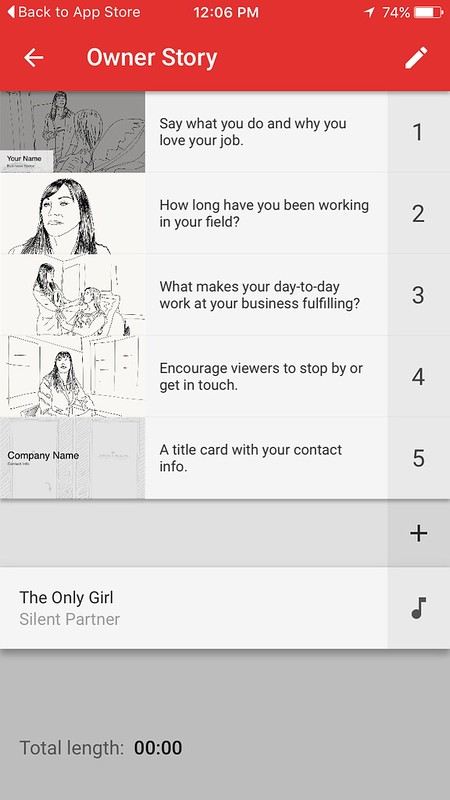
Once you download and run the app, you can choose what type of video you want to make. Here are the steps for a Owner Story:

YouTube Director for Business
Image: YouTube Director for Business Video Creation Steps

The prompts for what to shoot and how are like a film school in your hand. In addition to telling you what to shoot and giving examples of what to say, when you turn on your camera, the viewer gives you an outline to help you position your speaker.

I made this short video in a few minutes.

Friday, February 26, 2016

New YouTube Custom Blurring Feature works on moving people.


Google launches Custom Blurring feature on YouTube; users can draw box around object or person they wish to keep from being seen; YouTube blurs out boxed item, even if it moves in the frame; feature can be found in Blurring Effects tab of enhancements tool. via LAUNCH


Image: Choose automatic or custom


Image: In custom mode, choose what you want to blur, and for how long.

Thursday, July 11, 2013

What's Behind the Unboxing Video Subculture featuring Cassidy Quinn Brettler and Steve Garfield

I am there on You are here.

WERS Interview Stil

Brendan Mattox of WERS interviewed me for this segment, of You are Here: Social Media - Unboxing, covering web video.

The unboxing video is almost as old as Youtube itself. A culture has emerged of uploading short, shaky videos of people cracking the seals on everything from iPhones to DVDs. At first, it was a tech-only phenomenon, but as it has become more popular, it has broken those boundaries. Savvy marketers have started taking advantage of it- and the people behind the camera. Reporter Brendan Mattox finds out what’s behind this strange subculture, and how it became important enough to be a legitimate marketing strategy.

LISTEN: UNBOXING

"Culture has yet to elevate vlogging to high art, but Steve's tinkering reflects the narrative of creativity that encompasses people like Thomas Edison, Lou Reed, and Vincent van Gogh."

Visit: Cassidy Quinn Brettler

Sunday, June 23, 2013

How to Add Clickable Links to YouTube Videos using FCP X.

In order to increase engagement on YouTube, it's a good idea to give your viewer clickable links at the end of your videos.

In this example I've linked to a related video, and to a Subscribe Button

Here's how I set it up in Final Cut Pro X:

On the timeline add a short clip from another video, and add a subscribe button.

FCP X: YouTube Video Post Roll and Subscribe Button

After uploading the video to YouTube, you have to add ANNOTATIONS.

Use SPOTLIGHT MODE.

Then CLICK 'Link', SELECT 'Video', and add in the URL of the other YouTube video.

YouTube: How to Link to another YouTube video, in a video

Here you CLICK 'Link', SELECT 'Subscribe', then add your YouTube channel name.

YouTube: How to Add a SUBSCRIBE button to your Video

Here's a subscribe button you can use:


Image: YouTube Subscribe Button

See these links in action here.

Wednesday, May 29, 2013

HOW TO Use the YouTube Slow-Motion Feature [50%]


Here's how to do it via the YouTube Using Enhancements page:

When signed in, click the arrow next to the Upload button at the top of any YouTube page

YouTube - Click Arrow Next To Upload\

Select Video Manager

YouTube: Video Manager

Click the Edit button for the video you want to edit

Uploads - YouTube: Edit

Click Enhancements

YouTube: Video Editor - Enhancements

Click the Slow-Motion Turtle and choose your speed.

YouTube: Slow-Motion Turtle

Here I chose 50%.

YouTube: Slow-Motion 50%

When you’re done, click Save, or use Save as to create a new enhanced video, while keeping the original video untouched.

via Slomo makes everything better

Monday, February 04, 2013

[Video] The Replacer - Official Call of Duty: Black Ops 2


The Replacer - Official Call of Duty: Black Ops 2 Video

I loved this pre-roll ad for Call of Duty: Black Ops 2, that I saw on YouTube.

I don't play the game, and won't buy it, but I am sharing it. ;-)


Thursday, January 31, 2013

Good Bye YouTube Create

I broke this story on twitter:


YouTube: http://www.youtube.com/create

According to an email from WeVideo, today (1/31/13) is the last day for YouTube Create:

After January 31st, YouTube is discontinuing their “YouTube Create” program.
YouTube/Create
http://www.youtube.com/create

I've tracked down the sites that will still be available for these video creation tools.

Xtranormal Movie Maker
Xtranormal lets you to turn anything you type into a fully-animated CG movie. Set up your scene, type in your script, and animate it instantly. Easily share something funny.
by Xtranormal
www.youtube.com/create_detail/Xtranormal

New link: http://www.xtranormal.com

GoAnimate
GoAnimate is a fun app that lets you make animated videos, for free, in just 10 minutes, without having to draw. You can even create your own cast of characters.
by GoAnimate
www.youtube.com/create_detail/GoAnimate

New link: http://goanimate.com

Vlix - video effects and text
Create great videos by applying video effects and adding text. Select from a variety of effects - fix effects, time altering effects, artistic effects and fun video borders.
by VlixVideo
www.youtube.com/create_detail/VlixVideo

New link: https://www.vlixvideo.com/vlix/register


AD:
Steve Garfield's Ultimate List of Video Gear
Image: Steve Garfield's Ultimate List of Video Gear


Vibop

Vibop makes your videos shine with just a few clicks. Add an animated intro, a vintage filter, a cartoon look, a silent movie theme, and dozens of other effects.
by Vibop
www.youtube.com/create_detail/Vibop

New link: http://vibop.com

One True Media video creation and editing
One True Media, simply powerful video creation. Robust, fast and easy video editing with real-time preview. Clip video and combine it with photos, transitions, effects, and text.
by SpotMixer
www.youtube.com/create_detail/SpotMixer

New link: http://www.onetruemedia.com

WeVideo
WeVideo is a cloud-based video editing platform. Edit movies in your browser, with media files from any device. Combine clips with music, effects, titles, transitions, and animations.
by WeVideo
www.youtube.com/create_detail/WeVideo

New link: WeVideo.com

Magisto - Video Editing In a Click!
Magisto will analyze and understand your video, select the best parts and make it look amazing on YouTube!
by Magisto
www.youtube.com/create_detail/Magisto


New link: http://www.magisto.com

Elsewhere:
YouTube shuts down its YouTube Create program for partner apps:
YouTube is shutting down YouTube Create at the end of this month, ending what was supposed to be a promotion of both the YouTube API and third-party apps taking advantage of it. YouTube Create was launched some 18 months ago as a showcase for third-party video editors like WeVideo, Vibop and Magisto.

Wednesday, January 16, 2013

How to Add a Clickable Link to a YouTube Video

I was recently asked how to add a clickable link to a YouTube video.

For the longest time, all you were allowed to do on YouTube was to link to another video.

But, now you can link off site!

In the YouTube help section it's called: Associated Website Annotations.

This feature is only available to verified partners who are in good standing.

You can check your status on the YouTube Settings/Features page.

First you have to assign an Associated Website to your account. That's the external site that you will be linking to.

Then, you can add an annotation to your video that links to that external site.

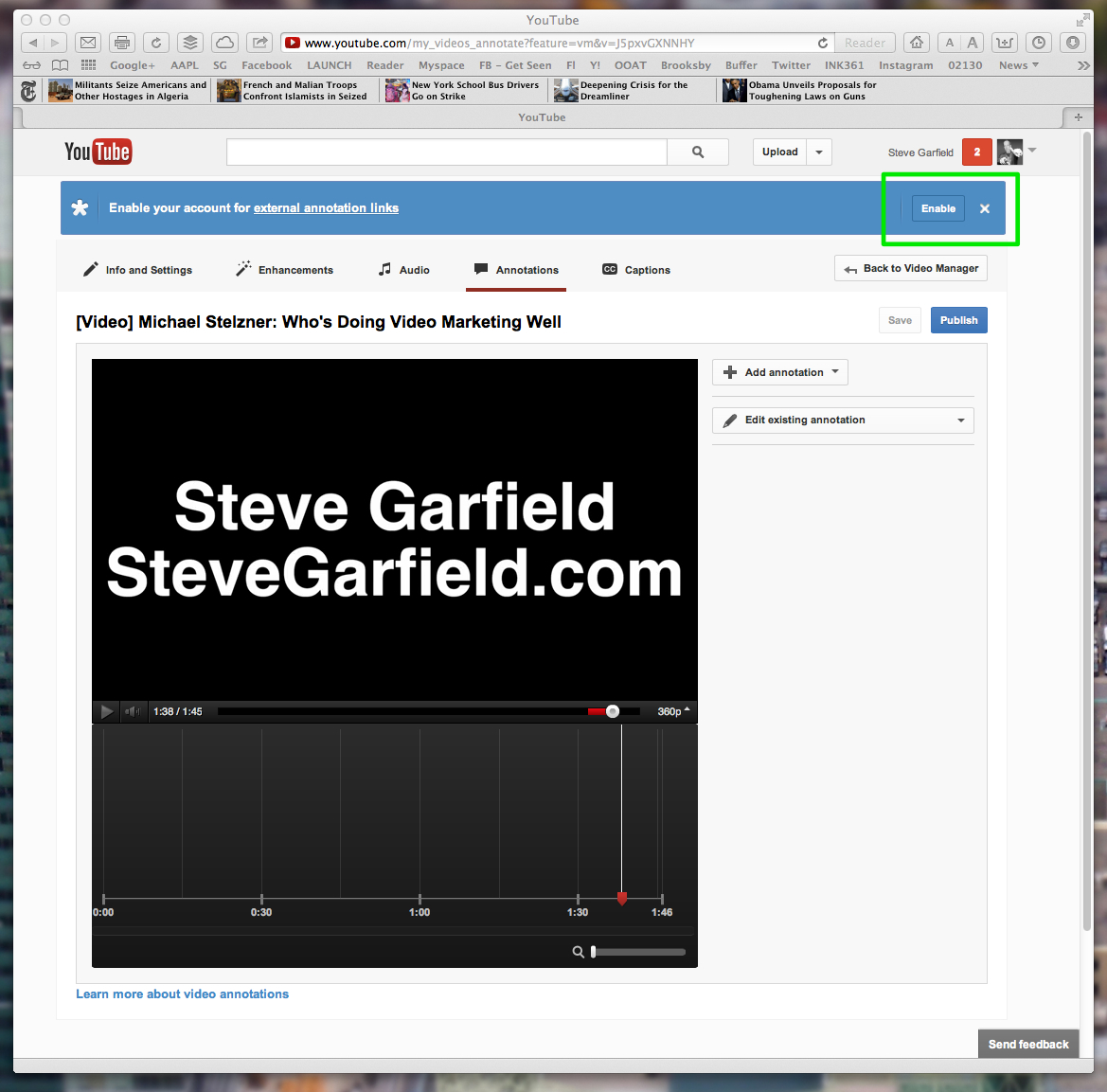
From Video Manager/Edit you first have to "“Enable your account for external annotation links.”


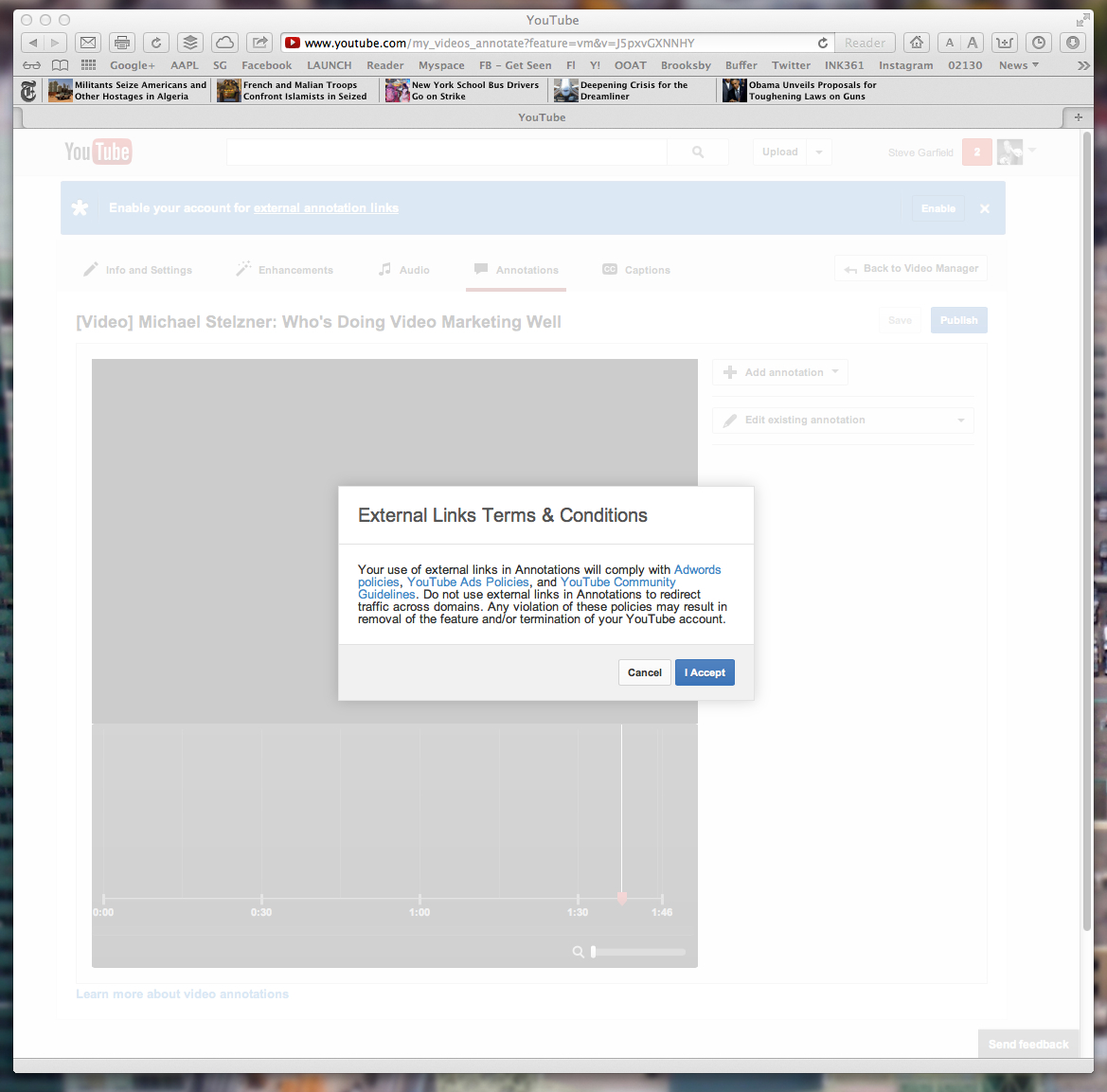
Then agree to the Terms & Conditions.


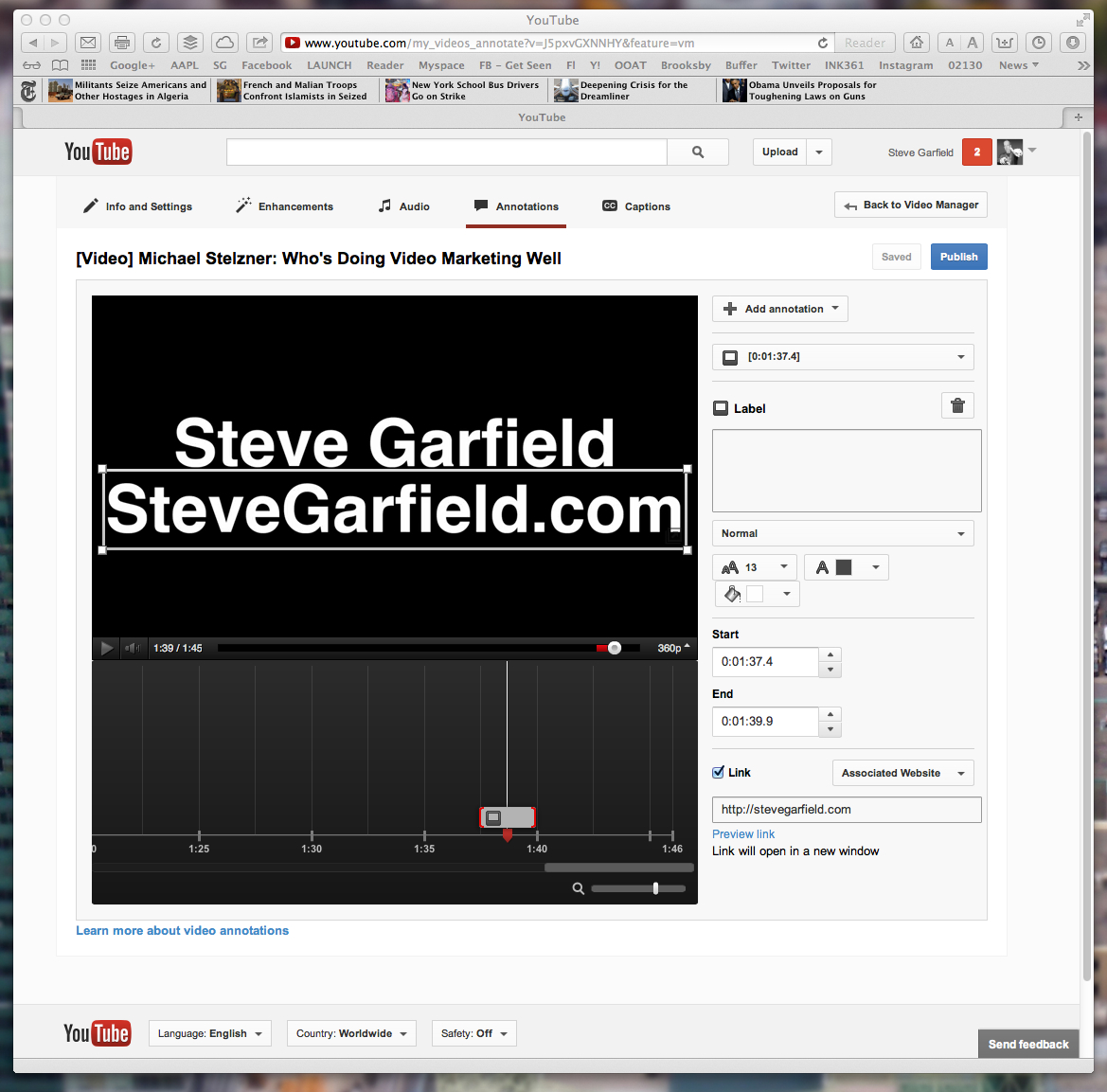
Then Add an Annotation, like a Label, Click the Link checkbox, and choose Associated Website.

Type in your URL and then Click PUBLISH to make it live.


Here's the result.


At the end of the video [1:37.4], my URL SteveGarfield.com is now clickable.

Update 2/16/13:

Great explanation video by James Wedmore.


He also explains how you can send people to places other than you main URL, like an about me page http://stevegarfield.com/Site/About_Me.html, plus James also has found out that redirects work too. ;-)

Tuesday, December 18, 2012

[Video] Rewind YouTube Style 2012 featuring PSY, @iJustine, @FeliciaDay and Rhett and Link


There are a whole lot of YouTubers in this video.

YouTube must have paid a LOT of money to get PSY to star.


Image: PSY

Three of my friends are in here, iJustine, Felicia Day and Rhett and Link.


Image: iJustine


Image: Felicia Day


Image: Rhett and Link

All the others, I don't know. I'm pretty out of touch with who the YouTube 'stars' of the day are.

Do you recognize them?

Video Description:

We invited some YouTubers to star in a mash-up of culturally defining moments of 2012. Can you spot all the references? More at http://youtube.com/rewind. Directed by Peter Furia

See if you can name all the YouTube stars and spot all the references in the video. You might even find a few surprises! (hint: try moving your mouse around while the video is playing...).

Produced by Peter Furia and Beau Lewis | Director of Photography: Catherine Goldschmidt | Edited by Peter Furia and David Fine | A Seedwell Production. Full credits at http://seedwell.com/rewind

STARRING
PSY - http://youtube.com/officialpsy
Walk off the Earth - http://youtube.com/walkofftheearth
AlphaCat - http://youtube.com/alphacat
KassemG - http://youtube.com/kassemg
DailyGrace - http://youtube.com/dailygrace
MysteryGuitarMan - http://youtube.com/mysteryguitarman
DaveDays - http://youtube.com/davedays
DeStorm - http://youtube.com/destorm
PyroBooby - http://youtube.com/pyrobooby
BarelyPolitical - http://youtube.com/barelypolitical
RealAnnoyingOrange - http://youtube.com/realannoyingorange
FreddieW - http://youtube.com/freddiew
CorridorDigital - http://youtube.com/corridordigital
RhettAndLink - http://youtube.com/rhettandlink
Smosh - http://youtube.com/smosh
FeliciaDay - http://youtube.com/geekandsundry
ChesterSee - http://youtube.com/chestersee
iJustine - http://youtube.com/ijustine
EpicMealTime - http://youtube.com/epicmealtime
MyHarto - http://youtube.com/myharto
JennaMarbles - http://youtube.com/jennamarbles
ShitGirlsSay - http://youtube.com/shitgirlssay
JuicyStar07 - http://youtube.com/juicystar07
GloZell - http://youtube.com/glozell1
ClevverTV - http://youtube.com/clevvertv
SmoshGames - http://youtube.com/smoshgames
HuskyStarcraft - http://youtube.com/huskystarcraft
PLUS
RyanHiga - http://youtube.com/ryanhiga
and more...

Monday, November 19, 2012

Three Ways to Upload your video to YouTube

Upload your video - YouTube

You now have three options for uploading video on YouTube:

- Upload a video file
- Record from Webcam
- Broadcast Live via Google+ Hangouts

www.youtube.com/my_videos_upload

Wednesday, November 07, 2012

[YouTube Video] Barack Obama's Victory Speech Full - #Election2012


Watch President Barack Obama's full speech after his victory over Mitt Romney in the 2012 presidential election.

CNN Transcript: Obama's victory speech:
OBAMA: Thank you. Thank you. Thank you so much.

Tonight, more than 200 years after a former colony won the right to determine its own destiny, the task of perfecting our union moves forward.

(APPLAUSE)

OBAMA: It moves forward because of you. It moves forward because you reaffirmed the spirit that has triumphed over war and depression, the spirit that has lifted this country from the depths of despair to the great heights of hope, the belief that while each of us will pursue our own individual dreams, we are an American family and we rise or fall together as one nation and as one people.

(APPLAUSE)

Tonight, in this election, you, the American people, reminded us that while our road has been hard, while our journey has been long, we have picked ourselves up, we have fought our way back, and we know in our hearts that for the United States of America the best is yet to come.

(APPLAUSE)

OBAMA: I want to thank every American who participated in this election...

Image: Barack Obama's Victory Speech Election 2012 Courtesy WSJ